
IoT Sensor Hello World
What you will learn in this tutorial:
- Hardware setup to capture the state of the push button
- Setup button callback in Iottly
- Edge computing in Iottly
Preconditions
After connecting your Raspberry Pi:
you can follow this tutorial.
Hardware setup
In this exercise we are going to use pin #12 as an input (sensor) to capture the state of the push button
- Create a circuit like the one in the sketch
- This time the yellow wire connect Pin #12 to 3.3V (through the push button)
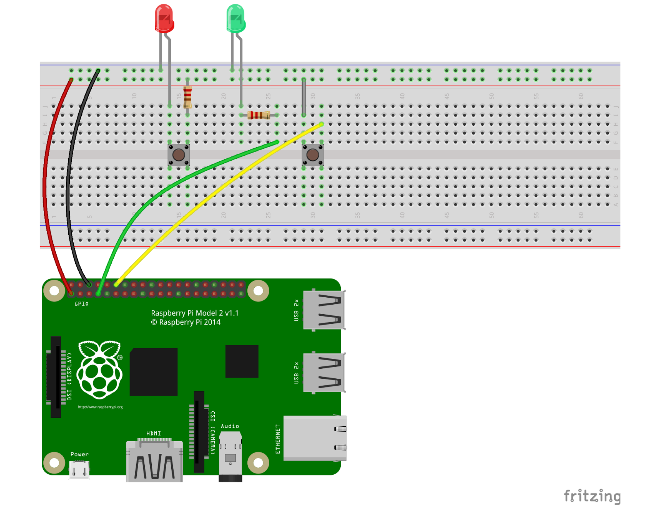
Raspberry Pi 1 Rev 1 Pinout reference here
Raspberry Pi 1 Rev 2 Pinout reference here
Raspberry Pi 2/3 Pinout reference here
Raspberry Pi zero w Pinout reference here
Let’s use Iottly to configure an event to be triggered when the button is pressed
Setup button callback in Iottly
In the “Management Scripts” panel edit the following snippets:
init:- Initialize Pin #12 to be managed as input
- The
GPIO.PUD_DOWNflag allows to set a software version of a pull down resistor
- The
add_event_detectallows to register a callback to be executed whenever the input changes its status- The
GPIO.BOTHmeans the event must be triggered both on rising or on falling signal - The
bouncetimeavoids multiple events to be triggered due to physical bouncing of the switch
- The
- Initialize Pin #12 to be managed as input
def init():
  #...

  #-------------------------------
  # here your code!!

  pin = "7"
  GPIO.setup(int(pin), GPIO.OUT)
  pin = "12"
  GPIO.setup(int(pin), GPIO.IN, pull_up_down=GPIO.PUD_DOWN)
  GPIO.add_event_detect(int(pin), GPIO.RISING, callback=button_pressed, bouncetime=200)

  #---------------------------------
global:- Add the callback function
button_pressed
- Add the callback function
# ...
def button_pressed(channel):
  status = GPIO.input(7)
  send_msg({"button_pressed": {"GPIO": channel, "state": status}})
- It will send a message to Iottly evry time the button is pressed

- Test the “IoT Sensor Hello World” from the Console
Edge computing in Iottly
Let’s add an edge feedback so that when the button is pressed, the green LED is switched on.
Once flashed over-the-air this feedback will be triggered by the Raspberry PI, even if it is disconnected from the Internet.
global:- modify the callback function
button_pressed - The green LED is controlled by pin #7
- modify the callback function
# ...
def button_pressed(channel):
  status = GPIO.input(7)

  # -------- edge feedback -------------
  status = not status
  GPIO.output(7,status)
  # -------- edge feedback -------------

  send_msg({"button_pressed": {"GPIO": channel, "state": status}})
- Notice that the feedback message is sent after the physical actuation has been executed: if the actuation raises an exception the feedback message is not sent
- Test the “IoT Sensor Hello World” from the Console