
Get started
What you will see in this tutorial:
- Working with the Console
- Management Scripts
- Pre built examples of Management Scripts
- How to Flash the pre built examples
- How to Test the pre built examples
- Creating Messages
- How to Create and test a command
Console
- Logs
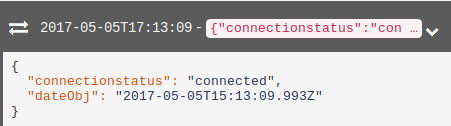
- Messages from a newly registered board
- Just the Agent is running, without any user produced code (what is called userpackage)
- Messages from a newly registered board
- Command Console
- Two commands messages are preset by Iottly
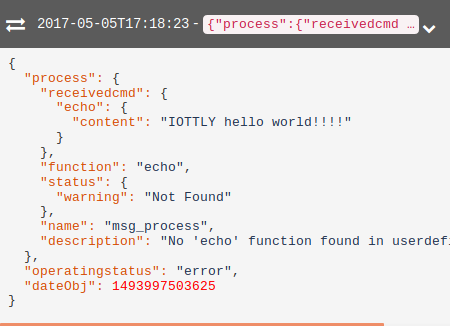
- Try to send the “echo” command, which is expected produce and echo from the board
- What’s the output?
- There is no handler for this command right now
- Two commands messages are preset by Iottly
- We may consider flashing a firmware …
Management Scripts
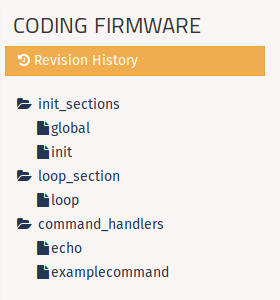
The “Management Scripts” panel is divided into sections:
- Sections contain auto generated code snippets
- Snippets can be edited and they are stored individually within the project
When flashing over-the-air, Iottly builds the Snippets into one single userpackage.py file
There are different section types:
- Init sections
- global
- init
- called once after the firmware is loaded
- Loop section
- loop
- called forever while the firmware runs
- loop
- Command handlers
- One snippet for each of the commands defined in the Messages panel
- called every time the command is received
- One snippet for each of the commands defined in the Messages panel
Pre built examples
When a new project is created it comes with two pre built examples:
- Echo command:
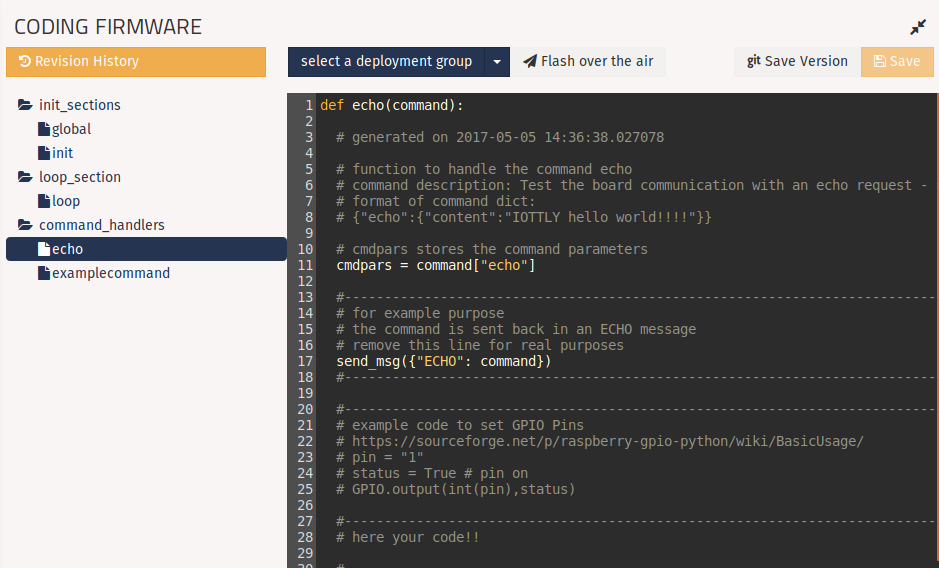
- Click on the “echo” snippet:
- When the echo command is received it is just sent back to Iottly
- Click on the “echo” snippet:
- Example command:
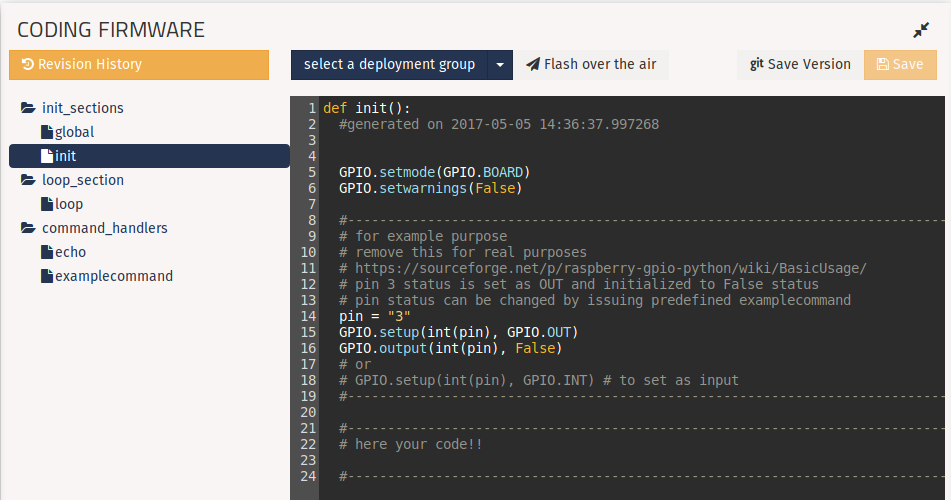
- Click on the “Init Function”:
- PIN #3 is initialized as OUT with OFF value
- Click on the “Init Function”:
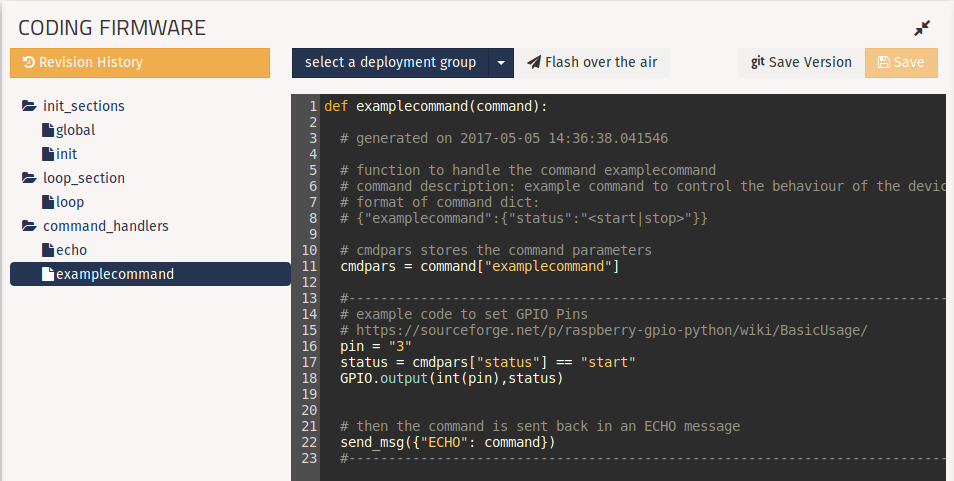
- Click on the “examplecommand” snippet:
- When the command is received, the board change status of the OUT PIN #3
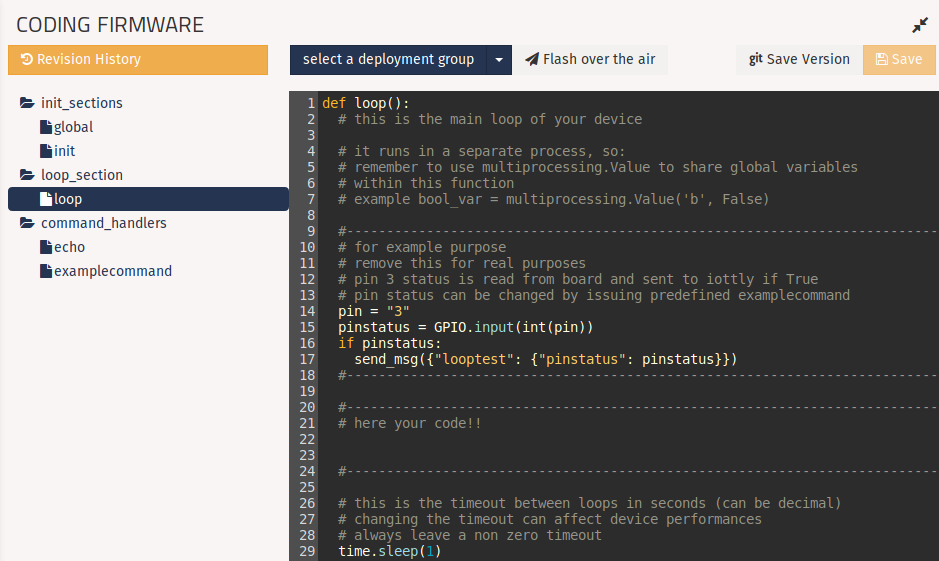
- Click on the “Loop” snippet:
- The function checks for the status of PIN #3
- If the status is ON the send a “looptest” message to Iottly with the status value
- Otherwise it doesn’t do anything
- Then the function waits for 1 second
Flash the pre built examples
- select the deployment groups and click on flash over the air

Test the pre built examples
- The firmware has been loaded
- The first message tells what firmware has been loaded
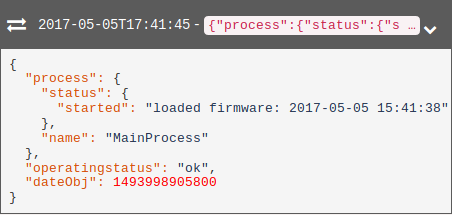
- A second message tells that the loop is started
- Try sending the “echo” command
- What’s the output now?
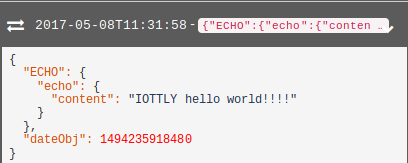
- The echo command function is handling the incoming message
- Try sending the “examplecommand” with “start” value for the “status” argument
- What’s the output?
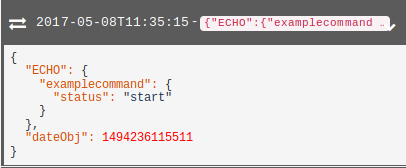
- An echo is sent also in this case to be sure the command has been received
- The “looptest” messages received confirms that the loop function is working properly too
- Send the “examplecommand” with “stop” value to stop sending data
Messages Panel
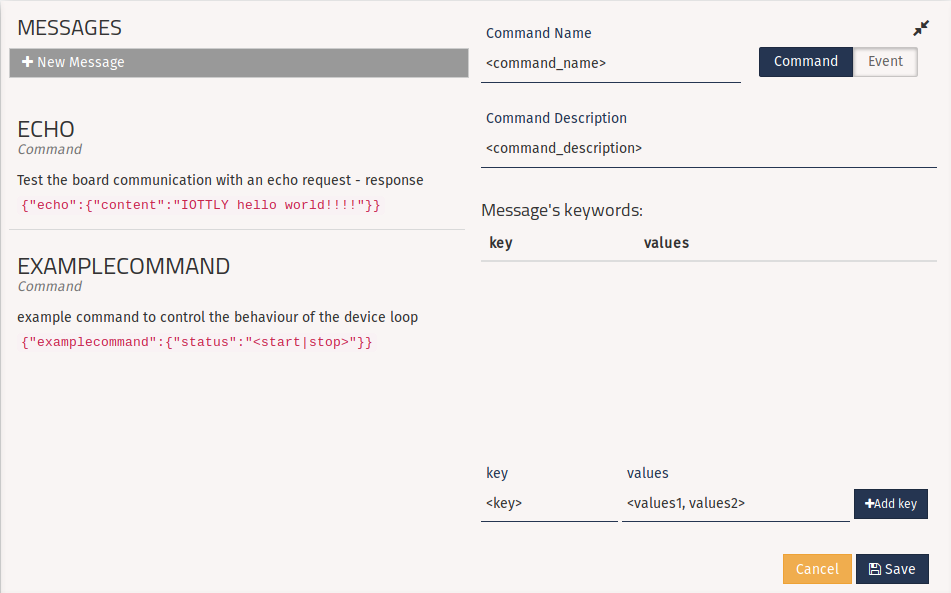
The Messages panel allows to create and edit the messages
- Both “commands” from Iottly to the device
- And “events” from the device to Iottly
- Currently only commands need to be defined, events can be defined straightly in the code
Messages payload is in
jsonformat.
- Currently only commands need to be defined, events can be defined straightly in the code
Messages payload is in
Iottly is payload agnostic, in this sense you are completely free to define any sort of semantic for the messages
Defining a command means:
- defining the payload you are going to send from Iottly to the device
- splitting the command into “keywords” with well defined semantics
Creating a command has the following three consequences:
- The command handler is auto generated in the firmware panel to manage the incoming message
- A command is added in the Console, to speed up testing of the defined messages and behaviours
- The command becomes immediately available to third parties applications via the Iottly API
Create and test a command
Create a new message
- The message type:
- Is going to be the main key in the json payload
- The message name
- The description:
- for documenting purposes
- useful as formal interface among different teams involved in firmware and cloud development
- Keywords:
- There can be as many keywords as you need
- Each keyword can have a different value type (which defines the semantic of the keyword)
- Multiple Value: the keyword can ship different values in a list
- Free Value: the keyword can ship any value
ASSIGNMENT
- Create a command with 3 keywords, one for each value type
- Check the auto generated code in the Firmware Panel
- Flash the firmware with the new code from the Firmware Panel
- Test the command from the Console